Where is My IP Location with NordVPN Your Complete Guide

Editor's pick: NordVPN — fast, secure VPN — Strong encryption, a no-logs policy and apps for every device. 30-day money-back guarantee. Get NordVPN →
Where is my IP location with NordVPN your complete guide — a quick fact: your IP address is the digital fingerprint of your device on the internet, and NordVPN can mask it to protect your privacy while letting you access geo-restricted content. In this guide, you’ll get a practical, step-by-step walkthrough to find your IP location, understand what NordVPN changing shows, and how to verify everything works. Below is a friendly, easy-to-follow roadmap with real-world tips, examples, and resources.
| VPN | Obfuscation | From / month | Plan | Free plan | Refund | Alipay | UnionPay | Crypto | Website opens in China | Trustpilot | |
|---|---|---|---|---|---|---|---|---|---|---|---|
 NordVPN | Turn on manually Obfuscated Servers / NordWhisper | $3.49/mo | 27 months: $94.23 | No | 30 days | ? | ✗ | ✓ | ✓ | ✗ Blocked | 4.2/5 (51,628 reviews) |
 Surfshark | ✓ On by default Camouflage, with OpenVPN | See site | See site | No | 30 days | ✗ | ✗ | ✗ | ✓ | ✗ Blocked | 4.3/5 (31,823 reviews) |
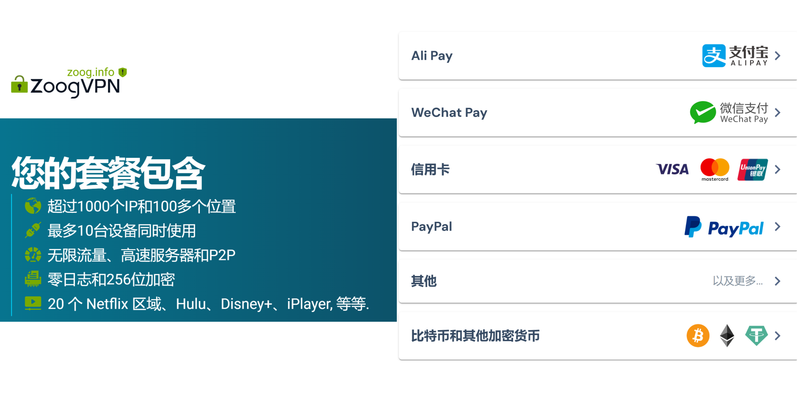
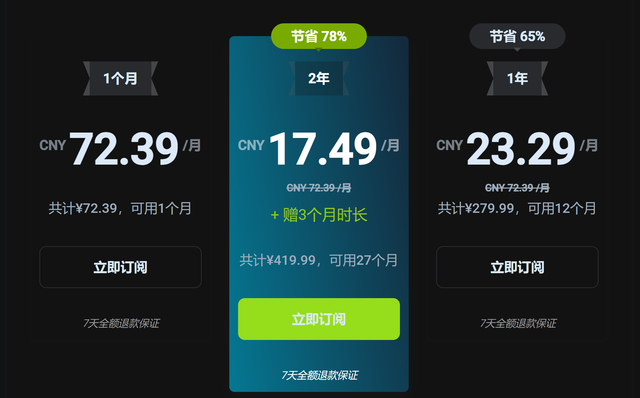
 ZoogVPN | Turn on manually Shadow | $2.49/mo | 27 months: $59.99 | Yes | 7 days | ✓ | ✓ | ✓ | ✓ | Official site blocked; our special link opens (4.4 s) | 4.2/5 (195 reviews) |
 ExpressVPN | ✓ On by default all servers | $3.00/mo | 28 months: $84 | No | 30 days | ✗ | ✗ | ✓ | ✗ | ✗ Blocked | 4.4/5 (29,706 reviews) |
 Proton VPN | Turn on manually Stealth, free plan too | $2.99/mo | 12 months: $35.88 | Yes | 30 days | ✗ | ✗ | ✗ | ✓ | ✗ Blocked | 2.1/5 (1,040 reviews) |
 Astrill VPN | Turn on manually StealthVPN / OpenWeb | $12.50/mo | 24 months: $300 | No | See site | ✗ | ✗ | ✗ | ✓ | ✗ Blocked | 1.3/5 (110 reviews) |
 Private Internet Access | Turn on manually Shadowsocks, OpenVPN only | $2.03/mo | 40 months: $81.2 | No | 30 days | ✗ | ✗ | ✗ | ✗ | ✗ Blocked | 4.2/5 (11,033 reviews) |
 CyberGhost | Turn on manually selected servers | $2.19/mo | 28 months: $61.32 | No | 45 days | ✗ | ✗ | ✗ | ✓ | ✗ Blocked | 4.0/5 (24,178 reviews) |
 PureVPN | Turn on manually switch to OpenVPN | $1.69/mo | 60 months: $101.55 | No | 31 days | ? | ? | ✗ | ✓ | ✗ Blocked | 4.4/5 (17,994 reviews) |
 AdGuard VPN | ✓ On by default TrustTunnel | $2.99/mo | 24 months: $71.76 | Yes | 30 days | ✓ | ✗ | ✓ | ✓ | Official site blocked; our special link opens (3.7 s) | 4.3/5 (290 reviews) |
 Mullvad | Turn on manually QUIC / Shadowsocks / LWO | $5.61/mo | €5/mo | No | 14 days | ✗ | ✗ | ✗ | ✓ | ✗ Blocked | 3.2/5 (192 reviews) |
 Windscribe | Turn on manually Stealth / WStunnel | $5.75/mo | 12 months: $69 | Yes | See site | ✗ | ✗ | ✗ | ✓ | ✗ Blocked | 4.7/5 (13,355 reviews) |
 StrongVPN | Turn on manually Scramble, OpenVPN TCP | See site | See site | No | 30 days | ✓ | ✗ | ✗ | ✗ | ✗ Blocked | 4.4/5 (2,695 reviews) |
 LightXtreme 闪连 | Not listed | $7.08/mo | 12 months: $84.99 | Yes | 30 days | ✓ | ✓ | ✓ | ✓ | ✓ Yes (3.5 s) | No page |
Prices checked 2026-11-10 on each vendor's pricing page (cheapest long plan, USD). Check the vendor's checkout for the final price.
Obfuscation checked 2026-11-14 on each vendor's site and help center: "on by default" = nothing to set; "turn on manually" = switch protocol or mode in settings; "not listed" = the vendor describes no obfuscation.
Payment methods checked 2026-11-10 on each vendor's payment pages: all 14 take cards and PayPal; ✗ = not listed, ? = the vendor's own pages disagree.
China access: whether the official website opens from mainland China networks (tests the website only, not the VPN connection). Last checked 2026-11-18 01:02 Beijing time.
Trustpilot score and review count checked 2026-11-10.
- Quick facts you’ll want to know right away
- How NordVPN affects your IP and location
- How to check your IP location before and after connecting
- Common scenarios and troubleshooting
- Best practices for staying private online
- Useful resources and links non-clickable in this list
Introduction: quick summary and what you’ll get Where is my IP location with NordVPN your complete guide? You’ll learn how to see your real IP vs. masked IP, how to verify the location NordVPN assigns, and how to switch locations fast. This guide includes: a clear step-by-step workflow, screenshots-style descriptions, practical tips, and a FAQ section with over a dozen questions to cover every angle. If you’re new to VPNs or just curious about how NordVPN hides your IP, you’ll find answers and actionable steps you can use today. And yes, you’ll also see how to verify your location using trusted tools.
Useful URLs and Resources un-clickable text Apple Website - apple.com Artificial Intelligence Wikipedia - en.wikipedia.org/wiki/Artificial_intelligence NordVPN – current promotion and signup page - nordvpn.com Google Public IP Locator - google.com IPinfo - ipinfo.io WhatIsMyIP - whatismyipaddress.com Browser privacy basics - privacytools.io Tor Project - torproject.org Wikipedia - en.wikipedia.org/wiki/Virtual_private_network Comparitech VPN privacy guide - https://www.comparitech.com
How IP location works and what NordVPN changes
- Your IP is a unique address assigned by your ISP that identifies your device on the internet.
- Websites and services use IPs to infer approximate location, often down to the city.
- NordVPN hides your real IP by routing your traffic through a VPN server, making the site see the server’s IP instead.
- Location accuracy can vary: the assigned server location may show as the city or country where the VPN exit server is located, not your real place.
- Some services try to detect VPNs, and a few might still reveal approximate location through other data browser fingerprinting, DNS leakage. NordVPN has features to mitigate that, such as DNS leak protection and kill switch.
Quick glossary
- Real IP: your true internet address assigned by your ISP.
- VPN exit IP: the IP shown to websites when you’re connected to a VPN.
- DNS leak: when requests reveal your real IP despite using a VPN.
- Kill switch: automatically blocks traffic if the VPN drops.
How to check your IP location with and without NordVPN
Step-by-step: find your real IP location
- Turn off NordVPN and disconnect any VPN tunnels.
- Open a browser and go to WhatIsMyIPAddress or IPinfo.
- Note the IP and approximate geolocation shown.
- This is your baseline to compare against when NordVPN is off.
Step-by-step: find your NordVPN-masked IP location
- Open NordVPN and connect to a server in your preferred country.
- Once connected, visit the same IP testing site WhatIsMyIP, IPinfo, or similar.
- Compare the IP and location shown. It should reflect the VPN server’s location city/country, not your actual location.
- If you see the VPN’s location, you’re effectively masking your real IP.
DNS leaks check
- With NordVPN on, visit dnsleaktest.com or the equivalent.
- Run the standard DNS leak test. You should see results pointing to NordVPN’s DNS servers, not your ISP’s.
- If you see your real DNS provider, you might have a DNS leak. Re-enable, switch servers, or contact support.
WebRTC leak check optional
- Some browsers expose your real IP via WebRTC. Use a WebRTC leak test site or disable WebRTC in your browser settings or via extensions.
- After disabling, run the test again with NordVPN on to confirm your real IP isn’t exposed.
Mobile vs desktop verification
- On desktop, you’ll likely use a browser test site. On mobile, you can use the NordVPN app’s built-in connection indicator plus the same test sites.
- Some apps gaming, streaming may route differently. Always re-check after changing servers or reloading apps.
Understanding server locations and how to choose
- NordVPN has thousands of servers in many countries. The server you pick determines the visible location.
- To access region-locked content, choose a country that matches the content you want. For streaming, pick a server known to work with that platform.
- Consider latency ping as you switch servers. A server close to you typically gives better speeds, even if your goal is simply privacy.
- If a site blocks VPNs, you may need to switch servers or use obfuscated servers if available.
Practical tips for server selection
- For streaming in the US: pick a US-based server with a good reputation for bypassing geo-blocks.
- For privacy-focused browsing: select a location with strong privacy policies and good latency for your region.
- For work or conferencing: choose a nearby server to minimize lag while maintaining privacy.
Common scenarios and how NordVPN handles them
Scenario 1: Accessing geo-restricted content
- Step 1: Open NordVPN and connect to a server in the country where the service is available.
- Step 2: Open the streaming service and test access.
- Step 3: If blocked, try a different city within the same country, or switch to obfuscated servers if supported.
Scenario 2: Public Wi‑Fi security
- NordVPN hides your IP and encrypts traffic on any network, reducing risk on hotspots.
- Always enable the kill switch to prevent data leaks if the VPN drops.
Scenario 3: Avoiding IP-based tracking
- Regularly vary servers or enable features like traffic obfuscation if you’re in a region with VPN restrictions.
- Clear cookies or use incognito mode in conjunction with the VPN for extra privacy.
Scenario 4: DNS privacy and bypass
- Ensure DNS leak protection is enabled in NordVPN settings.
- Use NordVPN’s built-in DNS servers to avoid ISP DNS exposure.
Scenario 5: Gaming and low latency
- Choose a nearby server with low latency. If you notice lag, switch servers or use a dedicated gaming server if offered.
Best practices for staying private online
- Use strong, unique passwords and enable two-factor authentication on your accounts.
- Always keep NordVPN updated to the latest version.
- Enable kill switch and DNS leak protection.
- Avoid logging into sensitive accounts over networks you don’t control without VPN protection.
- Be mindful of browser fingerprinting; consider privacy-focused browsers or extensions if needed.
- Regularly review connected devices and revoke access for devices you no longer use.
Features and why they matter
- Kill Switch: Keeps you safe if VPN drops; prevents data leaks.
- DNS Leak Protection: Stops DNS requests from revealing your real IP.
- Obfuscated Servers: Helps you bypass VPN-blocking networks and ISP restrictions.
- CyberSec: Blocks malicious websites and can reduce exposure to threats.
- Multi-Platform Support: Use NordVPN on Windows, macOS, Linux, iOS, Android, and more.
Speed considerations and how to optimize
- VPN can slow you down a bit due to encryption and routing. The impact varies by server distance and internet plan.
- Tips to optimize speed:
- Pick a nearby server for better latency.
- Use the fastest protocol available in your app settings e.g., WireGuard/Surfshark equivalent, depending on your plan.
- Avoid congested servers during peak times.
- Turn off unused apps that drain bandwidth while testing speeds.
Privacy implications: what NordVPN does and doesn’t do
- NordVPN states a no-logs policy, meaning they don’t store session data that can identify you.
- They maintain a strict privacy policy, including independent audits and transparency reports.
- Even with a VPN, you should still practice safe browsing and avoid sharing sensitive information on unsecured sites.
Troubleshooting common issues
- NordVPN won’t connect: Check your internet connection, try a different server, restart the app, or reinstall.
- DNS leaks detected: Ensure DNS leak protection is turned on; switch to a different DNS server in the app.
- Not getting the desired location: Switch to a different server in the same country or use obfuscated servers if available.
- Slow speeds: Swap to a closer server, use the fastest protocol, or test at different times of day.
Monitoring and ongoing security
- Regularly review your active devices in the NordVPN dashboard.
- Keep your OS and apps updated to minimize security gaps.
- Consider enabling additional privacy tools like browser isolation and endpoint security.
Real-world use cases and testimonials
- Students using NordVPN to access education resources blocked in their country.
- Remote workers protecting corporate data on public networks.
- Travelers who want to access home streaming services.
Data-backed insights to consider
- The average VPN user values privacy, access to geo-restricted content, and improved security on public Wi‑Fi.
- VPNs like NordVPN are among the most widely used tools for private browsing and secure connection.
Security considerations when using NordVPN
- Always verify you’re connected to the VPN before sharing sensitive information.
- Be cautious with browser plugins that may bypass VPN protections.
- Remember that a VPN protects data in transit, not the devices themselves—keep devices secure with up-to-date software.
How to get started quickly
- Sign up for NordVPN and install the app on your preferred devices.
- Open the app and sign in.
- Connect to a server in your desired location.
- Verify your IP location has changed by visiting an IP-check site.
- Enable DNS leak protection and kill switch for added security.
Advanced tips for power users
- Use split tunneling to route only certain apps through the VPN, keeping others on a direct connection for speed.
- Schedule VPN connections for specific times of day to balance privacy and performance.
- Use dedicated IP if offered for consistent access to certain services, though note this is typically a paid option.
Comparisons: NordVPN vs. other VPNs quick take
- NordVPN often emphasizes a large server network, strong privacy features, and ease of use.
- When evaluating, look at no-logs claims, DNS leak protection, kill switch, obfuscated servers, and price per month.
- Real-world performance varies; testing your own speed and access to content is key.
Troubleshooting checklist condensed
- Real IP vs. VPN IP: verify before and after connecting.
- DNS leakage: run a DNS leak test.
- VPN drop: ensure kill switch is on.
- Access to geo-blocked content: switch servers or use obfuscated servers.
- Connection stability: restart app, reboot device, or switch networks.
Maintenance and updates
- Keep NordVPN app updated.
- Review privacy settings quarterly.
- Re-check IP and DNS leakage after major system updates or browser changes.
- Refresh server lists if you notice slow performance or blocked content.
Safety and ethics of using VPNs
- Use NordVPN for legitimate purposes: protecting privacy, security on public networks, and lawful access to content.
- Respect terms of service for streaming platforms and adhere to local laws.
Resources for further reading
- NordVPN official website and help center
- Privacy and security best practices guides
- Local laws and regulatory guidelines on VPN use
- DNS privacy and WebRTC privacy resources
- Community forums and user experiences with NordVPN
Frequently Asked Questions
Is NordVPN legal to use everywhere?
NordVPN is legal in many countries, but a few have restrictions or bans on VPN use. Always check local laws before using a VPN in a new region.
How can I verify NordVPN is protecting my location?
Connect to a server, then check your IP location on a trusted site. It should show the VPN server’s location, not your real location. Run DNS leak checks and WebRTC tests to confirm.
Will NordVPN slow down my internet?
Some slowdown is normal due to encryption and routing. Choosing nearby servers and the fastest protocol can help minimize the impact.
What is a DNS leak, and how do I fix it?
A DNS leak happens when DNS requests go through your ISP instead of the VPN. Enable DNS leak protection in NordVPN settings and use NordVPN's DNS servers. Best free vpn extensions for microsoft edge in 2026: Boost Privacy, Speed, and Access with Top Free Extensions
Can I access streaming services with NordVPN?
Yes, many services work with NordVPN, but streaming platforms frequently update anti-VPN measures. If one server doesn’t work, try another or use obfuscated servers.
How many devices can I protect with NordVPN?
Most plans cover multiple devices simultaneously. Check your plan details for exact limits.
What is split tunneling, and should I use it?
Split tunneling lets you route certain apps through the VPN while others bypass it. It’s useful for apps that need low latency or direct access.
How do I prevent IP tracking while using NordVPN?
Use a VPN consistently, enable kill switch, DNS leak protection, disable WebRTC leaks, and clear browser fingerprints where possible.
Can NordVPN hide my IP on public Wi‑Fi?
Yes, the VPN encrypts your traffic and hides your real IP from local networks, making it safer to browse on public Wi‑Fi. Watchguard vpn wont connect heres how to fix it
What should I do if NordVPN isn’t connecting?
Check your internet, try a different server, restart the app, reset network settings, or reinstall the client. If issues persist, contact support.
How do I know which NordVPN server to pick for streaming?
Start with a server in the country of the service you want, then test. If blocked, switch to another city or use obfuscated servers if available.
Are there any data caps when using NordVPN?
NordVPN does not impose data caps on its core service. However, your overall internet speed is still limited by your plan and network conditions.
How often should I update NordVPN?
Keep the app updated to ensure you have the latest security features and bug fixes. Updates often include performance improvements and new server options.
Can I use NordVPN for gaming?
Yes, you can. Choose a nearby server to minimize latency. If you experience lag, test different servers to find the best balance of speed and privacy. Urban vpn for microsoft edge a comprehensive guide to faster, safer browsing
What is the difference between VPN server locations and virtual locations?
Some services offer virtual locations that appear to be in one city but may route traffic through servers elsewhere. Real IP exposure is still blocked, but latency and path can differ. NordVPN typically uses physical and virtual locations depending on server configurations.