Securely accessing mount sinais network your guide to the mount sinai vpn


Securely accessing mount sinais network your guide to the mount sinai vpn is all about keeping your data private while you access Mount Sinai’s resources from anywhere. In this quick guide, you’ll get practical steps, real-world tips, and the latest best practices to stay secure, fast, and productive. Think of this as the one-stop playbook for using a VPN to access Mount Sinai’s network safely, especially if you’re working remotely, traveling, or juggling multiple devices.


| VPN | Obfuscation | From / month | Plan | Free plan | Refund | Alipay | UnionPay | Crypto | Website opens in China | Trustpilot | |
|---|---|---|---|---|---|---|---|---|---|---|---|
 NordVPN | Turn on manually Obfuscated Servers / NordWhisper | $3.49/mo | 27 months: $94.23 | No | 30 days | ? | ✗ | ✓ | ✓ | ✗ Blocked | 4.2/5 (51,628 reviews) |
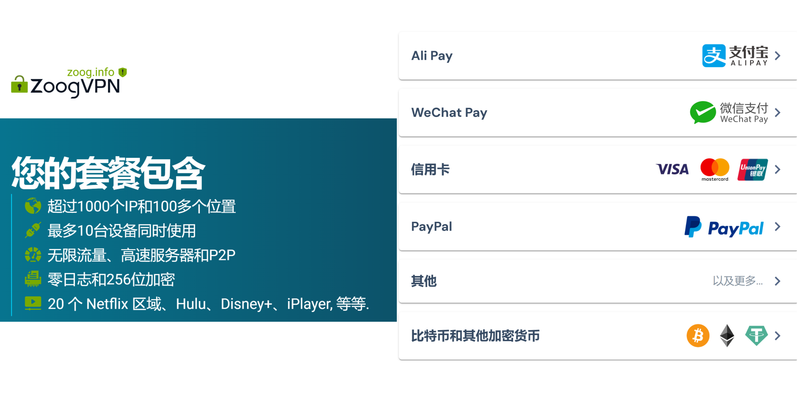
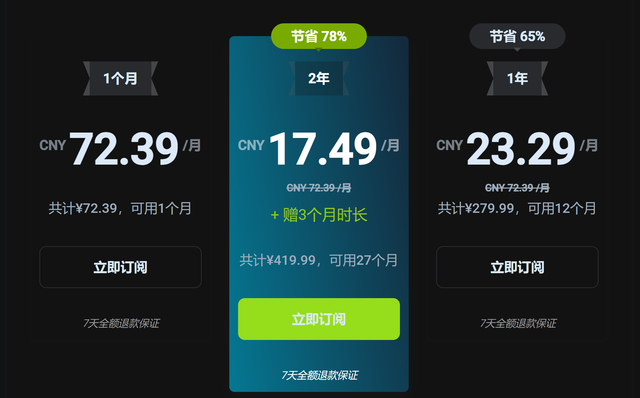
 ZoogVPN | Turn on manually Shadow | $2.49/mo | 27 months: $59.99 | Yes | 7 days | ✓ | ✓ | ✓ | ✓ | Official site blocked; our special link opens (4.4 s) | 4.2/5 (195 reviews) |
 ExpressVPN | ✓ On by default all servers | $3.00/mo | 28 months: $84 | No | 30 days | ✗ | ✗ | ✓ | ✗ | ✗ Blocked | 4.4/5 (29,706 reviews) |
 Surfshark | ✓ On by default Camouflage, with OpenVPN | See site | See site | No | 30 days | ✗ | ✗ | ✗ | ✓ | ✗ Blocked | 4.3/5 (31,823 reviews) |
 Proton VPN | Turn on manually Stealth, free plan too | $2.99/mo | 12 months: $35.88 | Yes | 30 days | ✗ | ✗ | ✗ | ✓ | ✗ Blocked | 2.1/5 (1,040 reviews) |
 Astrill VPN | Turn on manually StealthVPN / OpenWeb | $12.50/mo | 24 months: $300 | No | See site | ✗ | ✗ | ✗ | ✓ | ✗ Blocked | 1.3/5 (110 reviews) |
 Private Internet Access | Turn on manually Shadowsocks, OpenVPN only | $2.03/mo | 40 months: $81.2 | No | 30 days | ✗ | ✗ | ✗ | ✗ | ✗ Blocked | 4.2/5 (11,033 reviews) |
 CyberGhost | Turn on manually selected servers | $2.19/mo | 28 months: $61.32 | No | 45 days | ✗ | ✗ | ✗ | ✓ | ✗ Blocked | 4.0/5 (24,178 reviews) |
 PureVPN | Turn on manually switch to OpenVPN | $1.69/mo | 60 months: $101.55 | No | 31 days | ? | ? | ✗ | ✓ | ✗ Blocked | 4.4/5 (17,994 reviews) |
 AdGuard VPN | ✓ On by default TrustTunnel | $2.99/mo | 24 months: $71.76 | Yes | 30 days | ✓ | ✗ | ✓ | ✓ | Official site blocked; our special link opens (3.7 s) | 4.3/5 (290 reviews) |
 Mullvad | Turn on manually QUIC / Shadowsocks / LWO | $5.61/mo | €5/mo | No | 14 days | ✗ | ✗ | ✗ | ✓ | ✗ Blocked | 3.2/5 (192 reviews) |
 Windscribe | Turn on manually Stealth / WStunnel | $5.75/mo | 12 months: $69 | Yes | See site | ✗ | ✗ | ✗ | ✓ | ✗ Blocked | 4.7/5 (13,355 reviews) |
 StrongVPN | Turn on manually Scramble, OpenVPN TCP | See site | See site | No | 30 days | ✓ | ✗ | ✗ | ✗ | ✗ Blocked | 4.4/5 (2,695 reviews) |
 LightXtreme 闪连 | Not listed | $7.08/mo | 12 months: $84.99 | Yes | 30 days | ✓ | ✓ | ✓ | ✓ | ✓ Yes (3.5 s) | No page |
Prices checked 2026-11-10 on each vendor's pricing page (cheapest long plan, USD). Check the vendor's checkout for the final price.
Obfuscation checked 2026-11-14 on each vendor's site and help center: "on by default" = nothing to set; "turn on manually" = switch protocol or mode in settings; "not listed" = the vendor describes no obfuscation.
Payment methods checked 2026-11-10 on each vendor's payment pages: all 14 take cards and PayPal; ✗ = not listed, ? = the vendor's own pages disagree.
China access: whether the official website opens from mainland China networks (tests the website only, not the VPN connection). Last checked 2026-11-18 01:02 Beijing time.
Trustpilot score and review count checked 2026-11-10.
- Quick tip: If you’re curious about VPN value and want a trusted option, check out NordVPN through this affiliate link: NordVPN. It’s a solid choice for many users who need reliable, private access to sensitive healthcare networks. Read on to see how to maximize safety and performance with Mount Sinai’s VPN setup.
Quick fact: A well-configured VPN is your first line of defense when connecting to Mount Sinai’s network remotely. This guide combines practical steps, up-to-date security advice, and clear explanations so you can securely access Mount Sinai resources without slowing down your work.
What you’ll learn
- How VPNs protect sensitive hospital data when you’re off-site
- Step-by-step setup for Windows, macOS, iOS, and Android
- How to choose the right VPN protocol for Mount Sinai’s network
- Common issues and fast fixes
- Privacy, logging, and compliance considerations in healthcare environments
Useful URLs and Resources Apple Website - apple.com Artificial Intelligence Wikipedia - en.wikipedia.org/wiki/Artificial_intelligence Mount Sinai official site - www.mountsinai.org VPN security best practices - en.wikipedia.org/wiki/Virtual_private_network NIST cybersecurity framework - csrc.nist.gov HIPAA compliance overview - www.hhs.gov/hipaa NordVPN details - www.nordvpn.com Remote access policy for Mount Sinai - internal.mountsinai.org/remote-access Digital privacy basics - www.edri.org Online privacy guide - www.privacytools.io
Why a VPN matters for Mount Sinai users
- Data protection: Healthcare data is highly sensitive. A VPN encrypts your traffic, shielding patient information and internal communications from prying eyes.
- Access control: VPNs ensure that only authorized devices reach Mount Sinai’s internal resources, adding a layer of authentication before you can see patient data.
- Compliance readiness: HIPAA and related regulations require safeguards for electronic protected health information ePHI. A proper VPN setup is part of that safeguard.
Data and stats you can lean on
- Global VPN usage grew by around 28% in 2023 and remained strong in 2024–2025, driven by remote work and hybrid models.
- When configured correctly, VPNs can reduce exposure to public Wi‑Fi risks by a significant margin, often cited as a primary security control for remote access.
- Healthcare IT security incidents often involve compromised credentials and unsecured remote access; a robust VPN mitigates both risks when paired with MFA.
Getting started: prerequisites and planning
Before you connect, have these ready:
- A Mount Sinai approved device laptop, tablet, or phone with up-to-date OS and antivirus.
- Current VPN client approved by Mount Sinai e.g., the organization’s standard client.
- Active Mount Sinai credentials and MFA method Authenticator app, hardware key, or SMS/backup codes.
- Stable internet connection with minimal latency for smoother performance.
Checklist you can use
- Confirm device compliance with Mount Sinai’s security policy
- Update the operating system to the latest supported version
- Install the VPN client from the official Mount Sinai software portal
- Enable MFA and verify you can receive codes
- Confirm access to the required network resources VPN-only or split-tunnel configurations
VPN protocols: which one to pick for Mount Sinai
- OpenVPN: Reliable, strong encryption, widely supported across platforms. Good balance of speed and security.
- IKEv2/IPsec: Fast on mobile devices, great for roaming scenarios; robust behavior on unstable networks.
- WireGuard: Modern, lightweight, often fastest with solid security; check Mount Sinai’s compatibility.
- Always follow Mount Sinai’s guidance on required/prohibited protocols. Some hospital networks require specific configurations for compliance.
Tip: If you notice slow connections, switching between OpenVPN or IKEv2/IPsec or enabling WireGuard if available can improve performance on weaker networks.
Step-by-step connection guide general flow
- Install and update the VPN client
- Download the approved Mount Sinai VPN client from the official portal
- Install the app and run any required initial setup
- Check for updates and install the latest version
- Configure your profile
- Enter the VPN server address provided by IT
- Choose the recommended protocol OpenVPN, IKEv2, or WireGuard
- Enable split tunneling only if your policy allows it; otherwise route all traffic through the VPN for maximum security
- Authenticate
- Enter your Mount Sinai username and password
- Complete MFA Authenticator, hardware key, or SMS code
- If a token or certificate-based method is required, import the certificate as instructed by IT
- Establish the VPN connection
- Click Connect and wait for the status to show as Connected
- Verify your IP address and gateway are the ones expected for Mount Sinai’s network
- Test access to internal resources file shares, patient data systems, intranet pages as appropriate
- Troubleshooting during connection
- If you can’t connect, verify your credentials and MFA method
- Check your firewall or antivirus settings to ensure the VPN client is allowed
- Restart the VPN client or your device if you encounter stuck connections
- Consult Mount Sinai’s IT status page or help desk if there’s a known outage
- After you’re connected
- Use the VPN for all work-related traffic, especially when handling ePHI
- Maintain good endpoint hygiene: keep your OS and apps updated
- Disconnect when finished with sensitive work, and log out from the VPN
Common issues and fast fixes
- Slow speeds: Try a different protocol e.g., switch from OpenVPN to WireGuard if available and ensure you’re on a reliable network. Close bandwidth-heavy apps.
- Dropped connections: Enable auto-reconnect, and ensure power-saving settings don’t throttle network activity on laptops.
- MFA not accepted: Re-sync your authenticator or request a new token if time drift occurs. Have backup codes handy.
- Access denied to resources: Confirm you have the correct permissions for the resource, and ensure you’re connected to the correct VPN profile.
- Certificate errors: Import or update the campus certificate; verify system date and time are correct.
- On mobile: Enable “Always-on VPN” or similar feature if supported, to avoid manual reconnects.
Security best practices for Mount Sinai VPN users
- Use MFA: Always enable multi-factor authentication to prevent credential theft.
- Keep devices updated: Install OS and security updates promptly.
- Be mindful on public Wi‑Fi: Avoid sensitive tasks on open networks; use cellular data when possible.
- Password hygiene: Use unique, strong passwords and rotate them per Mount Sinai policy.
- Data handling: Do not store patient data locally unless explicitly allowed; use secure cloud services with proper access controls.
- Endpoint protection: Enable full-disk encryption where available BitLocker on Windows, FileVault on macOS.
- Regular audits: Periodically review device inventory and access privileges with IT.
Performance optimization tips
- Choose the closest VPN server: Lower latency improves response times for clinical applications.
- Use split tunneling if allowed: Route only work traffic through VPN while avoiding unnecessary encryption of non-work traffic.
- Network quality matters: If you’re remote, consider wired connections for desktop setups or strong Wi‑Fi for laptops.
- Bandwidth-aware apps: Pause backups or cloud syncing while you’re on VPN-heavy tasks to reduce congestion.
Privacy considerations
- VPNs do not make you completely anonymous online, but they do hide your activity from local observers and encrypt traffic from your device to the VPN endpoint.
- Review Mount Sinai’s privacy policy and IT data handling practices to understand how your data is stored and monitored.
- For medical professionals, ensure compliance with HIPAA and hospital policies when transmitting patient information.
Device and OS-specific tips
Windows
- Ensure Windows Defender and firewall rules don’t block the VPN client.
- Use the Run as Administrator option for initial VPN setup if required.
- Enable VPN auto-reconnect to avoid manual remakes after disruptions.
macOS
- Check that the VPN client has the proper permissions through System Preferences > Security & Privacy.
- Ensure Gatekeeper settings allow the VPN client to run.
iOS
- For iPhone/iPad, enable “VPN On Demand” if available for seamless reconnection.
- Keep iOS updated to ensure compatibility with VPN features.
Android
- Use the VPN app from the official store where possible to avoid spoofed versions.
- Back up your settings if the app requires reconfiguration after updates.
Data protection and compliance: HIPAA-friendly VPN use
- Encrypts data in transit, reducing the risk of interception over networks.
- Supports secure remote access for clinicians, researchers, and staff who require access to ePHI.
- Aligns with HIPAA rules around safeguarding electronic protected health information when used with proper access controls and audit logging.
Real-world scenarios: use cases
- Remote patient rounds: A clinician logs in securely to access patient charts and imaging data from home.
- Research collaboration: A researcher connects to the Mount Sinai research network to share datasets with collaborators without exposing data on public networks.
- On-site outage: IT staff use the VPN to reach critical systems after a campus network outage.
Quick-start cheat sheet
- Prepare: Update devices, install official VPN client, enable MFA
- Connect: Use the nearest server, verify credentials, connect
- Verify: Access internal resources, test a quick file transfer or login
- Secure: Disconnect when done, log out, and lock your device
- Troubleshoot: Check for updates, restart client, contact IT if needed
Future-proofing your Mount Sinai VPN setup
- Regularly update the VPN client to patch security vulnerabilities.
- Stay informed about Mount Sinai’s remote access policy and any changes to required protocols.
- Consider a hardware security key as your MFA method for faster, more secure authentication.
- Monitor for new privacy regulations affecting healthcare data and adjust practices accordingly.
Frequently Asked Questions
How does a VPN protect Mount Sinai data when working remotely?
A VPN creates an encrypted tunnel between your device and Mount Sinai’s network, shielding data in transit from eavesdroppers and ensuring only authorized devices can access internal resources. How to Install and Use Urban VPN Chrome Extension for Basic IP Masking: Quick Guide, Tips, and Safety
What VPN protocol is best for healthcare access at Mount Sinai?
OpenVPN, IKEv2/IPsec, and WireGuard are common options. The best choice depends on your device, network conditions, and Mount Sinai’s policy. Your IT team can confirm the recommended protocol.
Do I need to use VPN at all times while working remotely?
Most tasks that involve ePHI or internal systems should be performed over VPN, especially when using public networks. Some setups may allow split tunneling with restricted traffic; follow Mount Sinai policy.
How do I enable multi-factor authentication for VPN access?
Set up MFA with the preferred method Authenticator app, hardware security key, or SMS. You’ll typically pair MFA with your Mount Sinai credentials during login.
What should I do if I can’t connect to the VPN?
Check credentials, MFA status, and that you’re connecting to the correct server. Restart the client, verify firewall settings, and contact Mount Sinai IT if the issue persists.
How can I optimize VPN performance?
Choose the closest server, try different protocols if allowed, and limit bandwidth-heavy apps on your device during VPN use. If you’re mobile, a stable network is essential. How to generate openvpn ovpn files a step by step guide + VPNs
Is split tunneling allowed for Mount Sinai VPN?
This depends on policy. If allowed, it can improve performance by routing only work traffic through the VPN. If not allowed, all traffic must go through the VPN for security.
What devices are supported for Mount Sinai VPN?
Most major OSes Windows, macOS, iOS, Android are supported with the official client. Check the IT portal for device-specific installation guides.
How does VPN use relate to HIPAA compliance?
A VPN helps protect data in transit, which is a critical aspect of HIPAA compliance. It should be used alongside other safeguards like access controls, encryption at rest, and audit logging.
Can I use a personal device for Mount Sinai VPN access?
Only if it complies with Mount Sinai’s device policy and has the required security controls MFA, up-to-date OS, antivirus, etc.. Always verify with IT.
What’s the difference between a VPN and a secure remote desktop solution?
A VPN protects the connection itself. A secure remote desktop solution provides a virtual environment to access a workplace computer securely. Many setups use both: VPN for access and remote desktop for actual interaction with a work machine. Cisco anyconnect vpn cant access the internet heres how to fix it